
If your venue, concert promotion or festival sells tickets through United Tickets, the United Tickets integration brings your ticket buyers and their orders into Heyloyalty. You can then see who bought a ticket for which event, who showed up, and who said yes to your newsletter in the checkout. And you can write to them before and after the event.
In this guide, you can read how the integration works, how to set it up and how to import past orders from United Tickets.
What value does the United Tickets integration provide?
Follow up after the ticket purchase
Every ticket purchase comes into the tracking with the event, the time, the venue and the ticket type. The purchase carries the event’s start time (event_start), so you can find the people who bought a ticket for a specific event. Write to them before the concert with the practical details, for example when the doors open, and after the concert with a thank-you and the next event on the same stage.
Write differently to those who came and those who did not
When the tickets are scanned at the entrance, you know who showed up. The field attended on the purchase shows it. Those who came can get a thank-you and an offer for the next concert in the same genre. Those who did not come can get a different message with your upcoming events.
Show upcoming events in your emails
The integration creates the product feed United Tickets events with your upcoming events. Show them with name, image, price and a link to buy tickets in your newsletters and flows, so the recipient can go straight from the email to the ticket purchase.
Get more newsletter subscribers from the checkout
Buyers who say yes to the newsletter in the United Tickets checkout get newsletter permission in Heyloyalty. You choose which checkout questions count as consent. That lets you reach your audience from the ticket sales with next season’s programme.
Integration specifications
Here you can read how each part of the integration works.
Once set up, the integration runs continuously:
- The integration is one-way. Data only flows from United Tickets into Heyloyalty, and nothing is written back to United Tickets.
- Every 5 minutes, the integration retrieves new orders from United Tickets. An order is retrieved once it is an hour old, so a ticket purchase reaches Heyloyalty about an hour after it was made.
- The integration only retrieves orders from the moment you create it. You import earlier orders with an import of past orders.
- Buyers are matched with the contacts on the selected list on email or mobile number. Whether a buyer is created as a new contact depends on the consent. Read more under Contacts and consent.
- Every order line becomes a purchase in the list’s tracking, with the event as the product.
- Every hour, the integration reads the ticket scans and fills in the attendance on the purchases.
- Your upcoming events become the product feed United Tickets events.
- Every night, the integration reconciles the purchases with United Tickets. Cancelled order lines are marked as cancelled in the tracking, and the attendance is finalised.
The integration retrieves data from these endpoints in the United Tickets API:
- Promoters:
/v1/promoters/search - Events:
/v1/events/searchand/v1/events/{id} - Orders:
/v1/orders/searchand/v1/events/{id}/orders - Scans:
/v1/reports/scans
You can see every field that is mapped in the field mapping for United Tickets.
Token and access
The integration connects to United Tickets with a token. It is a personal access token that you create in the See Tickets Client Console under User Management. The integration only uses the token, not your username and password, and it only reads data with it.
Attendance requires that the token can read scans. It can when the user behind the token has the role Ticket Scanning in the See Tickets Client Console. If the user does not have the role, the rest of the integration works, but the attendance fields stay empty.
Contacts and consent
When you save the integration, two fields are created on the list: Newsletter Permission (newsletter_permission) and Service Permission (service_permission). They show which permission the buyer got from United Tickets.
Under Consent questions, you choose which questions from the United Tickets checkout give newsletter permission. A buyer has given consent when at least one of the chosen questions on the order is answered with its consent answer and none with the opposite. This is how the buyer is handled:
- The buyer gave consent: The contact is created or updated, and Newsletter Permission is set to Yes.
- The buyer did not give consent, and Create buyers without consent is set to No: If the contact is already on the list, it is updated. Otherwise, it is not created. This is the default.
- The buyer did not give consent, and Create buyers without consent is set to Yes: The contact is created or updated, and Service Permission is set to Yes. The buyer has not said yes to the newsletter, so only send them service emails.
If a buyer later answers no, the contact is not unsubscribed, and Newsletter Permission stays as it is. Contacts who have unsubscribed in Heyloyalty are never subscribed again by the integration.
If you change your choices under Consent questions later, the integration goes through the orders it has already retrieved again. Buyers who now count as consent get newsletter permission. Nobody is unsubscribed.
Ticket purchases in the tracking
Every order line in United Tickets becomes a purchase in the list’s tracking. An order line is the tickets of one ticket type for one event in one order. The contact is found through the field you match on.
- The event is the product.
amountis the number of tickets on the line, andproduct_priceis the price per ticket including the booking fee. - The purchase holds, among other things, the event’s start, doors opening, venue, promoter, artists, ticket type and seat. You can see every field in the field mapping for United Tickets.
- Order lines where the buyer has no value in the field you match on cannot be linked to a contact and are not added to the tracking.
- If a whole order line is cancelled, the purchase is marked as cancelled during the nightly reconciliation. Order lines that are already cancelled when the integration retrieves them are not added.
- If only some of the tickets on a line are cancelled, the purchase stays bought, and
tickets_cancelledshows how many tickets were cancelled.
If the list does not have a tracking integration, the United Tickets integration creates one when you save. The ticket fields are created in the tracking at the same time.
Attendance
The attendance comes from the ticket scans and is stored on the purchase in the fields attended, tickets_scanned and first_scanned_at.
- Every hour, the integration reads new scans for events that started within the last 2 days or start within the next day. The purchase gets
attendedset to Yes when a ticket on the line has been scanned. - A day after the event has ended, the attendance is finalised during the nightly reconciliation. Purchases where no ticket was scanned get
attendedset to No. If United Tickets has no end time for the event, the event counts as ended 6 hours after it started. - If the token cannot read scans, the attendance fields stay empty.
The United Tickets events product feed
When you save the integration, it creates the product feed United Tickets events. The feed holds your events that start today or later, except events from promoters you have set to Left out. Each event has, among other things, name, image, price, start time, doors opening, venue and the number of tickets left. If the list’s tracking integration does not already have a product feed, United Tickets events is linked to it.
United Tickets has no link to the event page. The link in the feed is therefore built from the field Event link, and if it is empty, the events in the feed have no link.
Use the feed in your campaigns the same way as other product feeds. Read more in Product feed in a campaign.
Nightly reconciliation
Every night at 2:30, the integration reconciles the purchases with United Tickets:
- The orders for the events with purchases in Heyloyalty that started within the last 2 days or lie in the future are read again. Cancelled order lines are marked as cancelled in the tracking, and partly cancelled lines get
tickets_cancelledupdated. - The attendance is finalised for events that ended more than a day ago.
Cancellations for events that started more than 2 days ago are therefore not included.
Field mapping
On the setup page, the fields are prefilled. A field mapping you leave empty is not transferred to Heyloyalty. You can see every field and what it contains in the field mapping for United Tickets.
Set up the United Tickets integration
Step 1: Create the integration and add the token
Go to Integrations → List integrations, find United Tickets, and click Setup integration. You get to the page United Tickets overview. Click Create United Tickets in the top right corner. You now get to the page Create United Tickets integration.
Under Connection, paste your token into the field Token. If you don’t have a token, create a personal access token in the See Tickets Client Console under User Management. Read more under Token and access.
Once you have pasted the token, Heyloyalty loads your promoters and the checkout questions from United Tickets. The first time can take up to a minute. The page then shows how many promoters and questions were found, and whether the token can read scans, so the attendance is filled in.
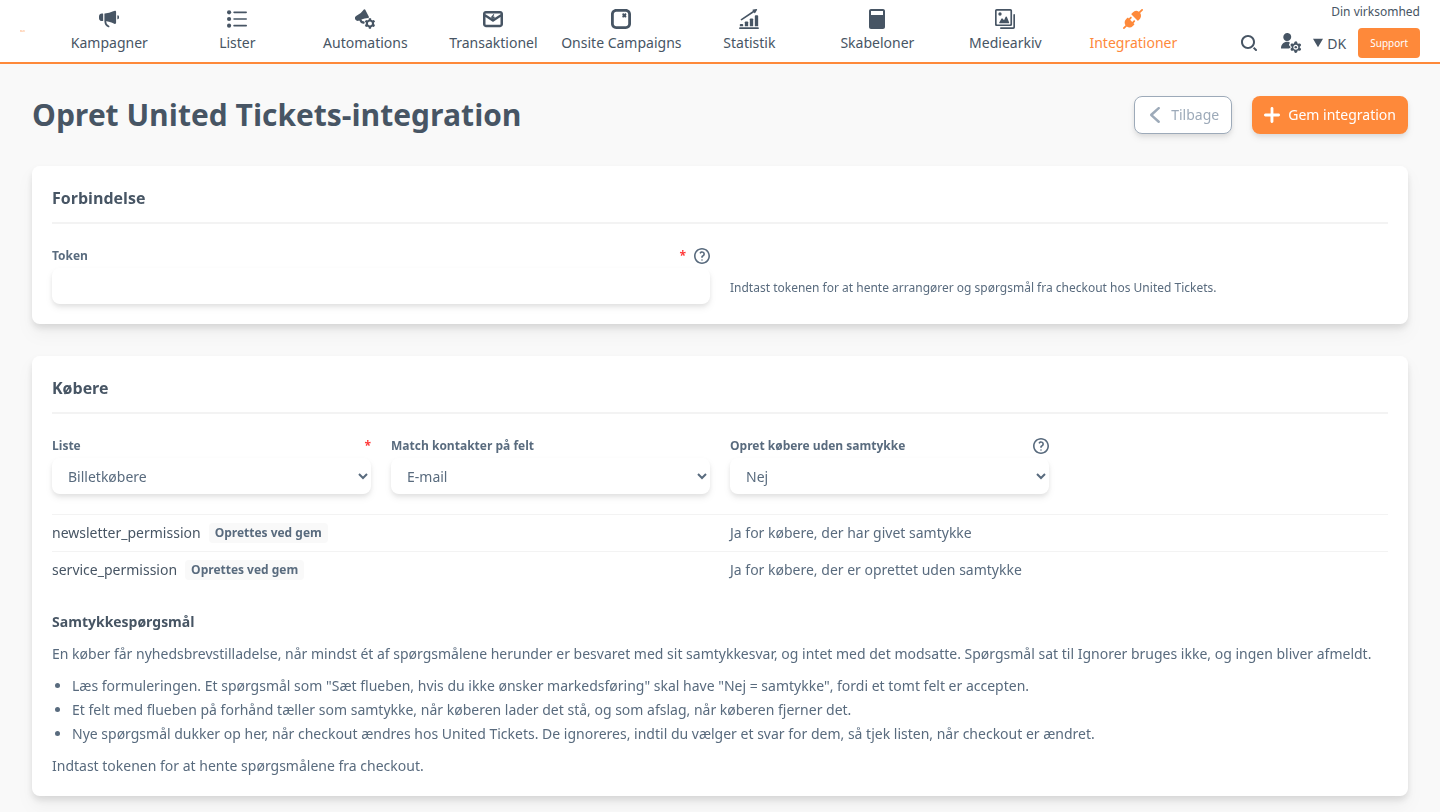
Step 2: Choose the list and buyers
Under Buyers, you choose where the buyers land and who is created:
- List: Select the list in Heyloyalty that buyers and ticket purchases from United Tickets should be imported to. If you don’t have a list, you can read how to create one.
- Match contacts on field: Choose whether buyers should be matched with your contacts on email or mobile number. The field must exist on the list, and buyers without a value in the field are not imported.
- Create buyers without consent: Set to No by default, so buyers without consent only update contacts that are already on the list. Choose Yes if they should also be created on the list with service permission. Read more under Contacts and consent.
Below the choices are the fields newsletter_permission and service_permission. If they don’t exist on the list, they are marked Created on save.
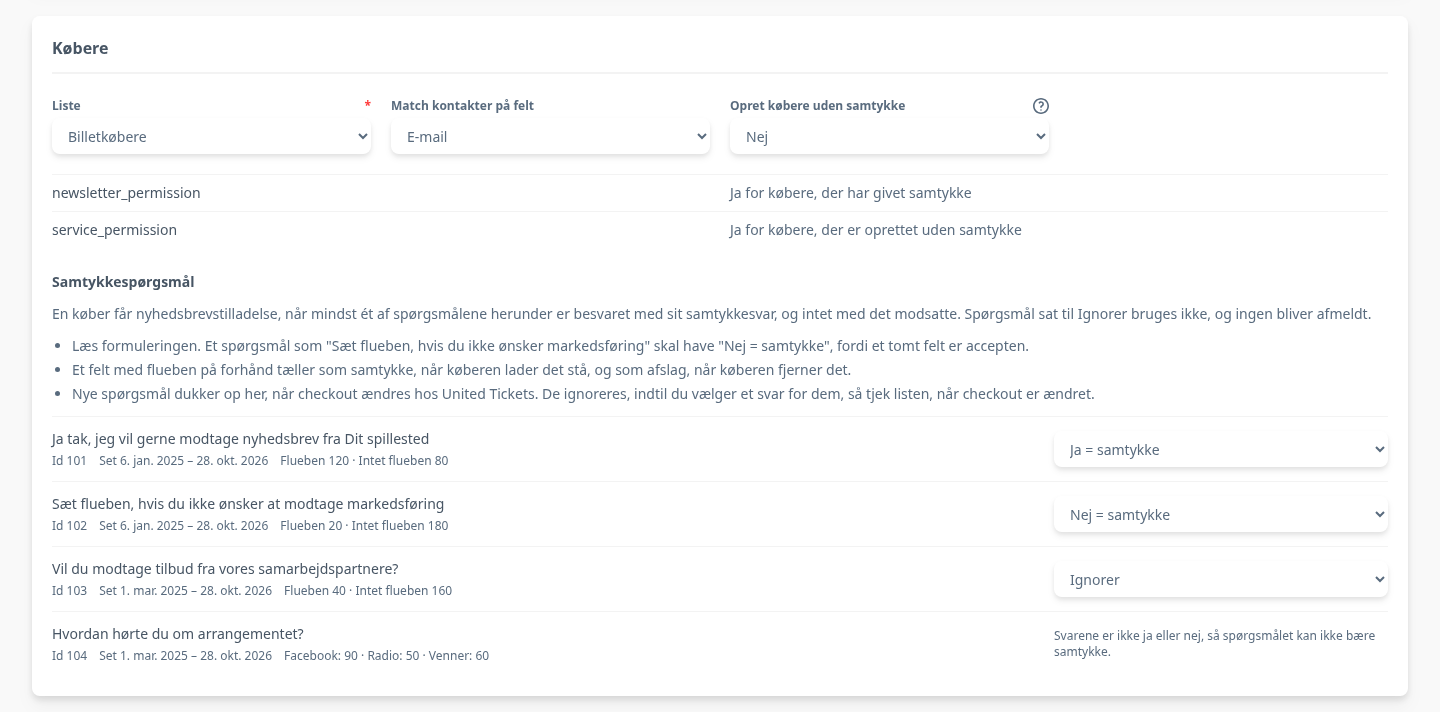
Step 3: Choose the consent questions
Under Consent questions, you see the checkout questions the integration has found on the orders. For each question, you see its id, when the question was seen, and how many ticked and did not tick the box. Choose one of these answers for each question:
- Ignore: The question is not used for consent. This is the default.
- Yes = consent: A ticked box means the buyer says yes to the newsletter.
- No = consent: An empty box means the buyer says yes to the newsletter.
Read the wording of each question. A question like “Tick the box if you do not want marketing” needs No = consent, because leaving the box empty is the acceptance. A box that is ticked in advance counts as consent when the buyer leaves it ticked, and as a refusal when they untick it. Questions where the answers are not yes or no cannot carry consent.
Step 4: Choose the events for the product feed
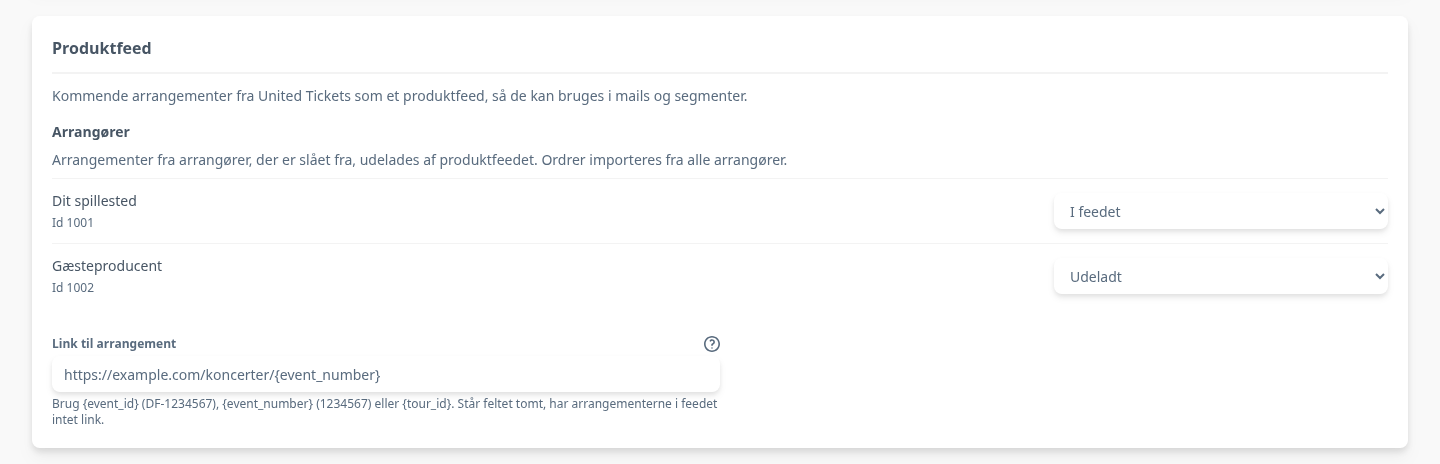
Under Product feed, you decide which events go into United Tickets events:
- Promoters: Set to In the feed by default. Choose Left out for a promoter if their events should not be in the product feed. Orders are still imported from every promoter.
- Event link: Enter the address of the event page on your own website, and use
{event_id},{event_number}or{tour_id}where the event’s id should go.{event_id}is the id withDF-in front, and{event_number}is only the number. If the field is empty, the events in the feed have no link.
Step 5: Save the integration
The sections Contact field mapping, Import settings and Ticket fields are prefilled, so you can usually leave them as they are. Read more about them under Advanced settings.
Click Save integration. Heyloyalty checks the token with United Tickets, and when the integration is saved, the following happens:
- The fields Newsletter Permission and Service Permission are created on the list if they don’t exist.
- The list gets a tracking integration if it doesn’t already have one, and the ticket fields are created in the tracking.
- The product feed United Tickets events is created.
You return to United Tickets overview, where the integration is now listed. From then on, the integration retrieves new orders from United Tickets every 5 minutes.
Step 6: Import past orders
The integration only retrieves orders from the moment you create it. If you also want earlier orders and buyers, you import them from United Tickets overview. Click the three dots (⋮) next to the integration, and choose Import past orders from United Tickets.
You find United Tickets overview again under Integrations → List integrations, where you click Edit integration next to United Tickets.
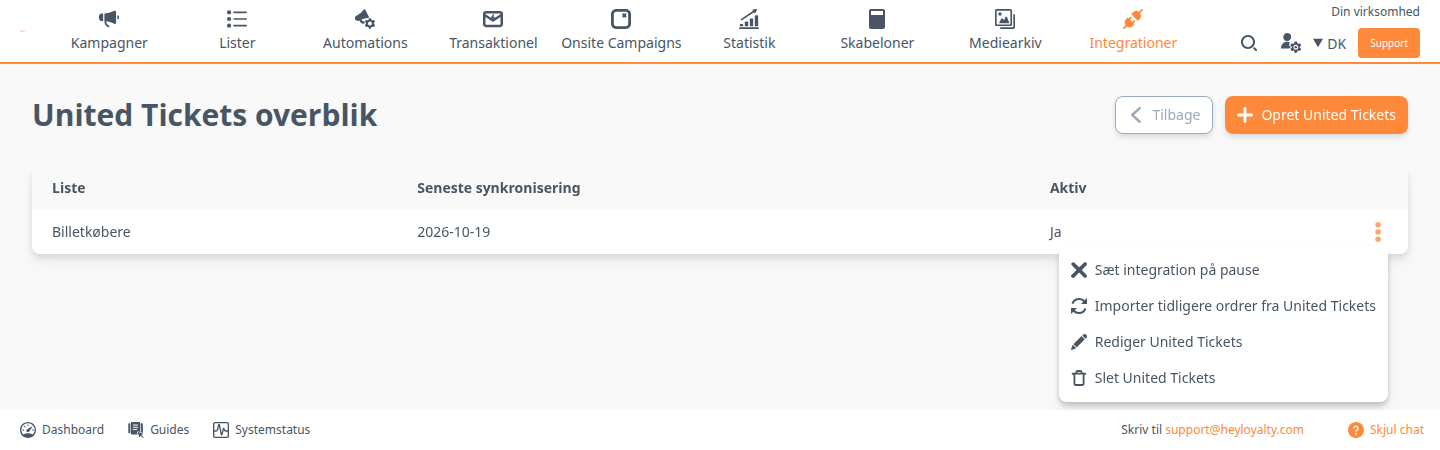
In the window Import past orders from United Tickets, you choose how far back the import goes:
- Start date: Every event from the start date on, upcoming events included, is imported with its orders and buyers. By default, the date is 2 years back, and you can go at most 2 years back.
- Trigger opt-ins and Trigger automations: Leave them set to No.
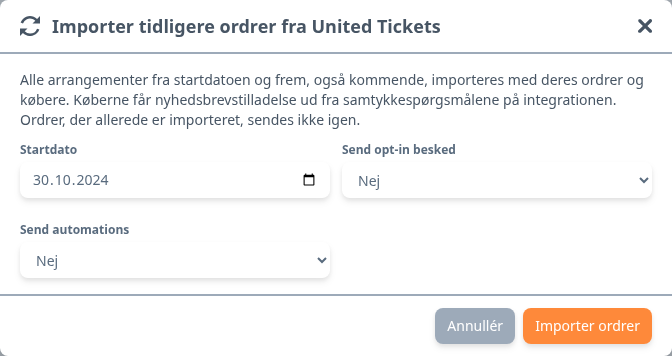
The buyers are handled according to your choices under Consent questions and Create buyers without consent, so finish those before you import. Orders that are already imported are not sent again. The attendance for past events is filled in during the nightly reconciliation after the import.
Click Import orders to start the import. The data is retrieved in the background, and it can take a while. Then check under Lists that the buyers have been added to the list.
Advanced settings
The sections Contact field mapping and Import settings are open when you create the integration. When you edit it later, they are closed. Ticket fields is always closed. Click the heading to open a section.
Contact field mapping
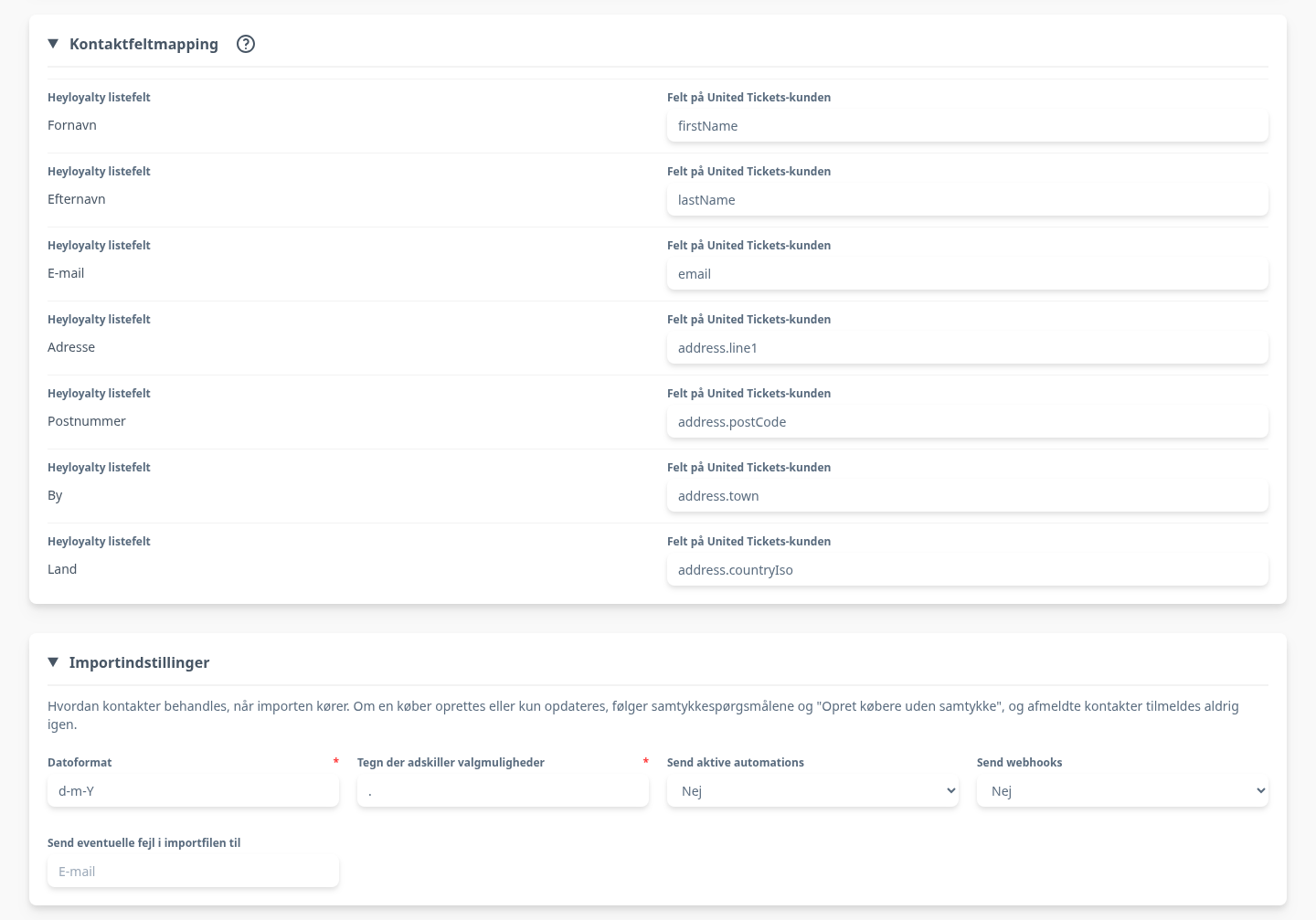
Under Contact field mapping, you connect the buyer’s details in United Tickets with the fields on your list. On the left is Heyloyalty list field, and on the right United Tickets customer field, where you enter the name of the field in United Tickets, for example firstName or address.postCode. First name, last name, email, mobile number, address, postal code, city and country are prefilled. The field you match contacts on cannot be changed here.
Import settings
Under Import settings, you decide how contacts and purchases are handled when the integration imports data. Whether a buyer is created or only updated follows the consent and Create buyers without consent, and unsubscribed contacts are never subscribed again.
- Date format: Leave it at the default.
- Character separating options: Leave it at the default.
- Send active automations: Set to No by default. Set it to Yes if buyers and ticket purchases from United Tickets should be able to start your active automations, for example a flow after a purchase.
- Send webhooks: Set to No by default. Choose Yes if contacts imported from United Tickets should trigger your webhooks, for example to a CRM system.
- Send any errors in the import file to: Enter an internal email address that should be notified if contacts or purchases fail in the import.
Ticket fields
Under Ticket fields are the fields every order line sends to the tracking, and what they hold. The fields are fixed. Fields marked Custom field are created in the tracking when you save. You can see all of them in the field mapping for United Tickets.
Pause, activate and delete
From the menu (⋮) on United Tickets overview, you can also manage the integration:
- Pause integration: The integration stops retrieving orders and scans, and the nightly reconciliation does not run. The column Active shows Integration is not active. Start it again with Edit United Tickets and the button Activate integration.
- Edit United Tickets: Leave the field Token empty to keep the saved token. If the user behind the token gets the role Ticket Scanning later, save the integration again with Update integration, so the access to scans is checked again.
- Delete United Tickets: The integration and the product feed United Tickets events are deleted. If you use the feed in your campaigns, remove it from them first.
Make active use of your United Tickets data
You have now connected United Tickets with Heyloyalty, chosen which checkout questions give newsletter permission, and imported past orders. Your buyers, their ticket purchases, the attendance and your upcoming events are now in one place.
That lets you answer questions such as: Who bought a ticket for Friday’s concert and should get the doors-opening information? Who did not show up, and which upcoming events should be in their next email? Who bought tickets for several concerts this year but not yet for the autumn? Build the answers as segments and flows on the ticket purchases and the attendance, and show your events from United Tickets events in your newsletters. Remember the segment on Newsletter Permission when you send them.